
How to Reduce Lag and Increase FPS on Android
Whether you’re playing BGMI, Call of Duty: Mobile, Free Fire MAX, Genshin Impact, or Mobile Legends, lag and frame drops can ruin your gaming experience. Sudden FPS drops, overheating, delayed touch response, and stuttering are common issues on both budget and flagship Android phones.
The good news is that most of these problems can be reduced by optimizing your device settings and following a few performance best practices. This guide covers practical methods that work without requiring root access or risky modifications.
What Causes Lag on Android?
Lag can occur for several reasons:
- Limited RAM available for games.
- Background apps consuming CPU resources.
- Insufficient storage space.
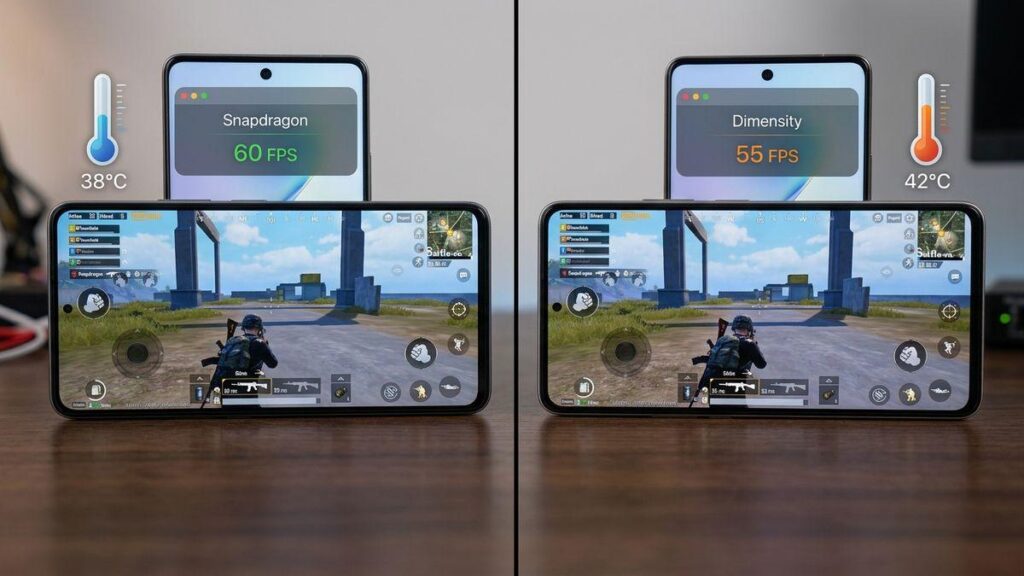
- Overheating, which causes the processor to slow down (thermal throttling).
- High graphics settings beyond your phone’s capabilities.
- Weak or unstable internet connection in online games.
- Outdated Android version or game updates.
Identifying the cause helps you apply the right solution.
1. Restart Your Phone Before Gaming
Restarting your Android phone clears temporary processes, refreshes system memory, and closes background services that may be consuming resources. If you haven’t restarted your phone for several days, a simple reboot can noticeably improve performance.
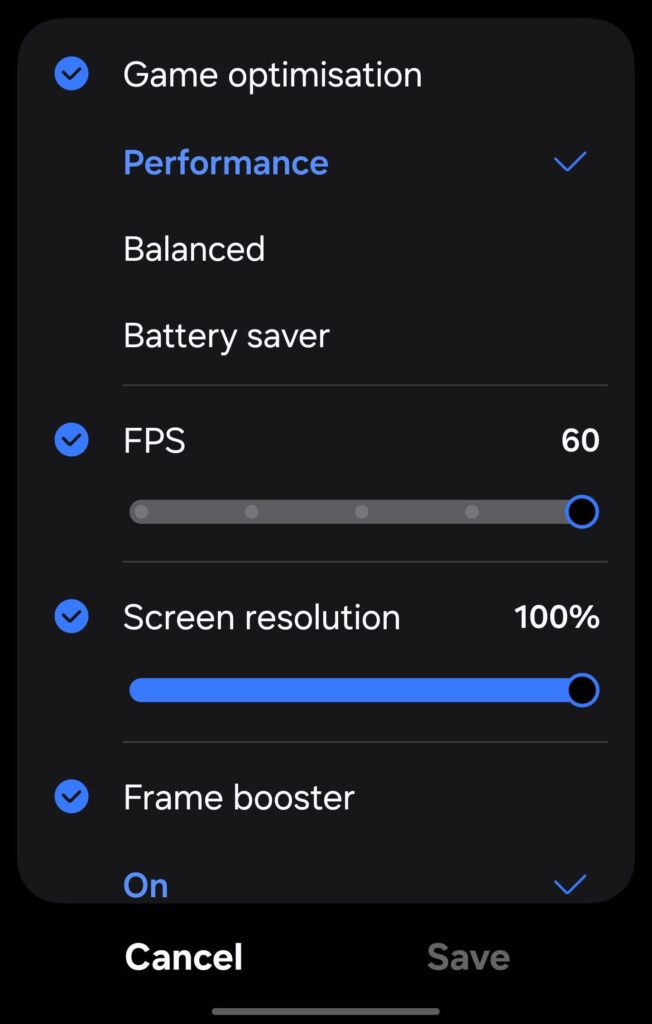
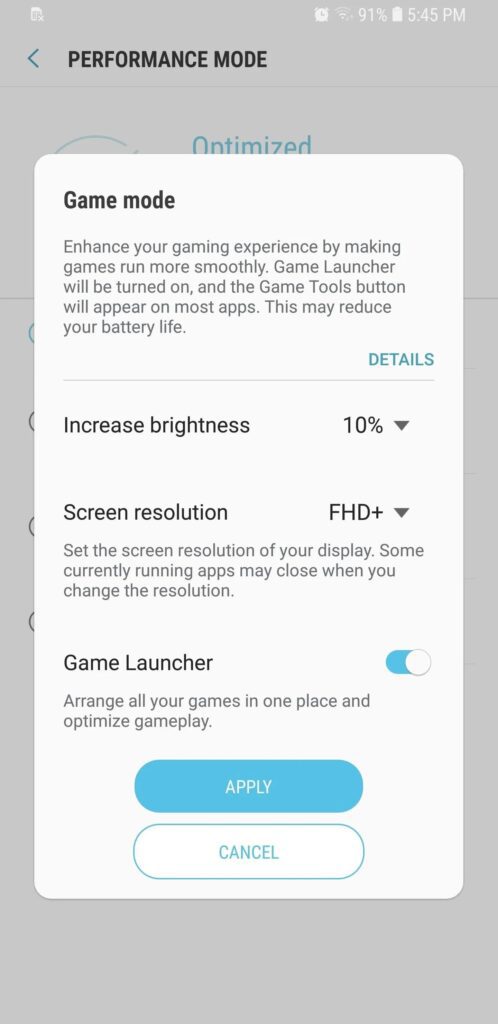
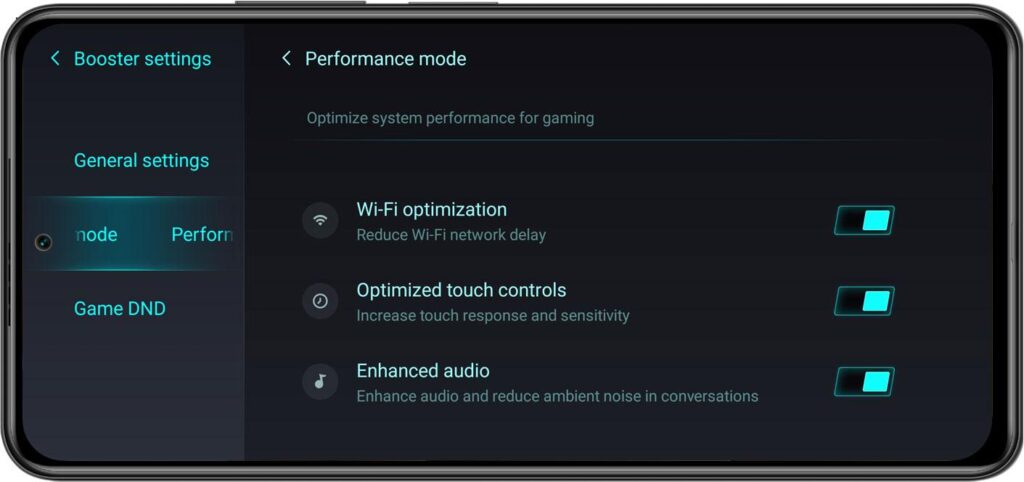
2. Enable Game Mode
Most Android manufacturers provide a built-in Game Mode that optimizes system resources while gaming.
Common names include:
- Samsung – Game Booster
- Xiaomi – Game Turbo
- OnePlus – HyperBoost
- ASUS – Armoury Crate
- vivo – Ultra Game Mode
- OPPO – Game Space
- realme – Game Space
Game Mode typically blocks notifications, allocates more CPU and GPU resources to the active game, and reduces interruptions.
3. Close Background Applications
Apps running in the background consume RAM, battery, and processor resources.
Before launching a game:
- Close unnecessary apps.
- Disable floating windows.
- Stop large downloads.
- Pause cloud backups.
- Turn off screen recording unless needed.
Keeping only essential apps running gives your game more available memory.
4. Keep At Least 20% Storage Free
Android performs best when internal storage isn’t nearly full.
If storage usage exceeds 90%, your phone may slow down because the operating system has less space for temporary files and caching.
Free up storage by:
- Removing unused apps.
- Deleting duplicate photos and videos.
- Clearing download folders.
- Moving media to cloud storage or a computer.
5. Lower In-Game Graphics Settings
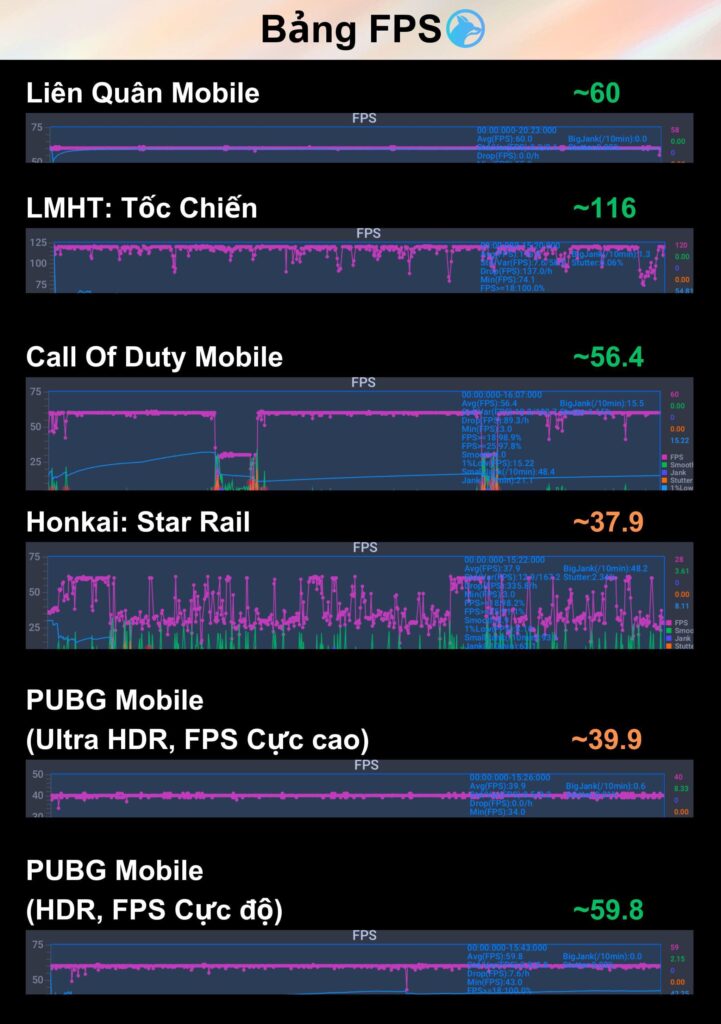
Higher graphics settings increase GPU workload and can reduce FPS on many devices.
For competitive games, prioritize frame rate over visual quality.
Recommended settings:
| Game | Graphics | FPS |
|---|---|---|
| BGMI | Smooth | Extreme / Ultra Extreme |
| COD Mobile | Medium | Max |
| Free Fire MAX | Standard | High |
| Mobile Legends | Medium | High |
| Genshin Impact | Low–Medium | 60 FPS (if supported) |
Lower graphics often result in smoother gameplay and faster touch response.
6. Enable High Refresh Rate
If your phone supports 90 Hz, 120 Hz, or higher refresh rates, enable them in your display settings.
A higher refresh rate can make navigation and supported games feel smoother. Note that actual game FPS also depends on whether the game supports higher frame rates and whether your hardware can sustain them.
7. Update Android and Games
Manufacturers and game developers frequently release updates that include:
- Performance optimizations.
- Bug fixes.
- GPU driver improvements.
- Better battery management.
- Stability enhancements.
Keeping your device and games up to date helps ensure you benefit from these improvements.
8. Prevent Overheating
When a phone gets too hot, it may reduce CPU and GPU speeds to protect internal components. This is known as thermal throttling and is a common cause of FPS drops during long gaming sessions.
To reduce heat:
- Remove thick protective cases while gaming.
- Avoid charging during intensive gameplay.
- Play in a cool environment.
- Take short breaks during extended sessions.
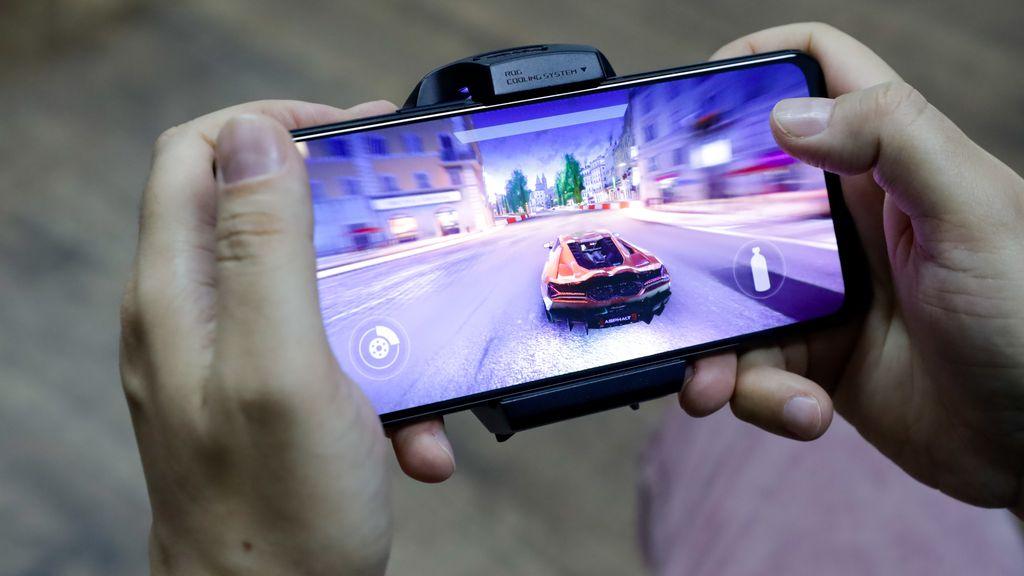
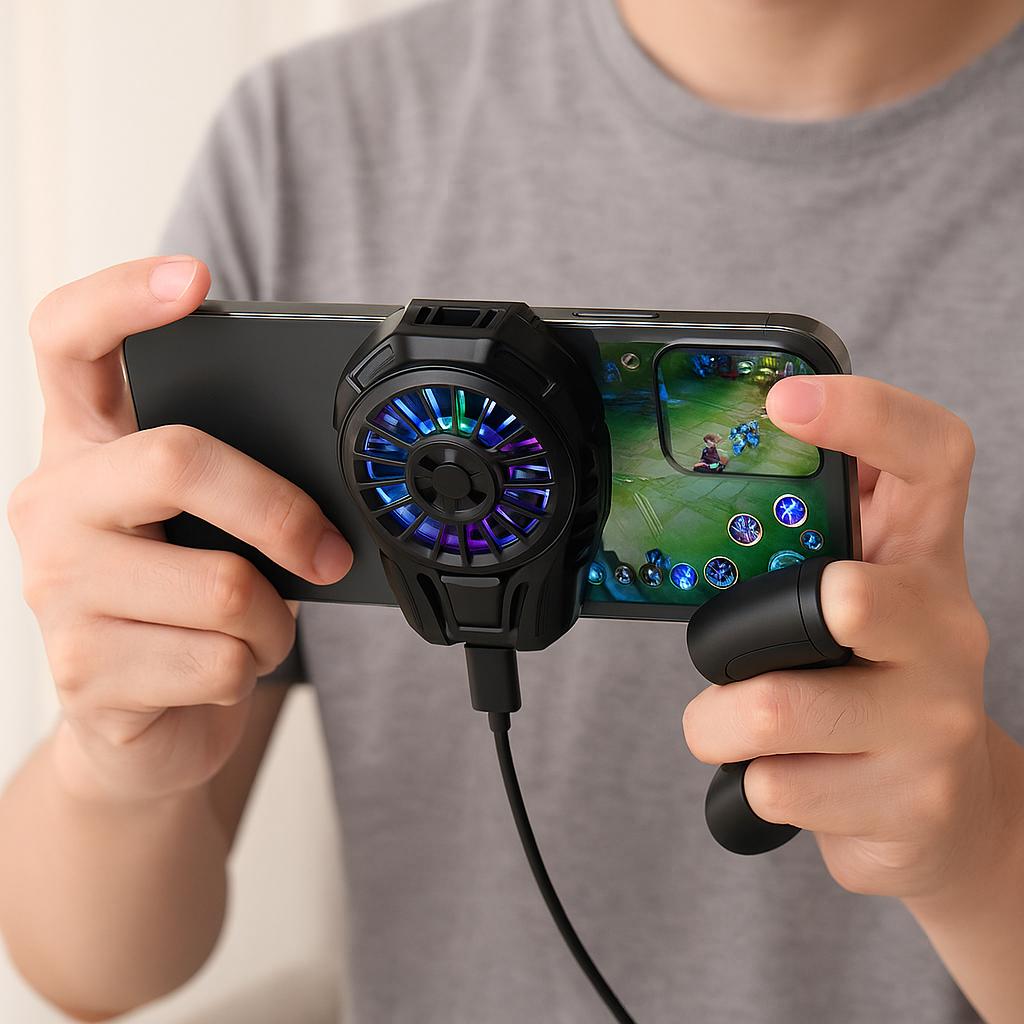
- Consider a mobile cooling fan if you game for long periods.
9. Clear App Cache
Over time, apps accumulate cached files that can become unnecessarily large.
To clear cache:
- Open Settings.
- Tap Apps.
- Select the game.
- Open Storage.
- Tap Clear Cache.
Avoid using “Clear Data” unless you’re sure your progress is safely backed up.
10. Optimize Internet Connection
For online games, network stability is just as important as device performance.
Improve your connection by:
- Using 5 GHz Wi-Fi when available.
- Staying close to the router.
- Limiting other high-bandwidth activities on your network.
- Switching to a stable 4G or 5G connection if Wi-Fi is unreliable.
Lower latency can improve responsiveness in multiplayer games.
11. Disable Battery Saver While Gaming
Battery Saver modes often reduce CPU performance to extend battery life. If you want the best gaming experience, disable Battery Saver before launching games.
Be aware that this may increase battery consumption.
12. Use Official Game Plugins
Some manufacturers offer official tools that provide performance monitoring and optimization.
Examples include:
- Samsung Game Plugins
- ASUS Armoury Crate
- Xiaomi Game Turbo
- OnePlus Game Tools
These utilities can help monitor FPS, temperature, and performance without modifying the operating system.
13. Avoid Unnecessary Performance Booster Apps
Many third-party “RAM boosters” or “FPS booster” apps claim to dramatically improve gaming performance. In practice, many provide little benefit and may consume resources themselves or display excessive ads.
Stick to your phone’s built-in optimization tools whenever possible.
Best Android Settings for Popular Games
BGMI
- Graphics: Smooth
- Frame Rate: Extreme or Ultra Extreme (if supported)
- Anti-Aliasing: Off
- Auto-adjust Graphics: Off
- Game Mode: Enabled
Call of Duty: Mobile
- Graphics: Medium
- Frame Rate: Max
- Depth of Field: Off
- Real-Time Shadows: Off
Free Fire MAX
- Graphics: Standard
- High FPS: On
- Shadows: Off (if available)
These settings balance performance and visual quality on many devices.
Common Mistakes That Reduce FPS
Avoid these habits:
- Installing apps from unknown sources that promise performance boosts.
- Running too many apps simultaneously.
- Ignoring available software updates.
- Filling internal storage almost completely.
- Gaming while charging if it causes excessive heat.
- Using graphics settings beyond what your phone can comfortably handle.
Frequently Asked Questions
Can I increase FPS without rooting my Android phone?
Yes. Many performance improvements come from optimizing settings, freeing storage, updating software, and enabling built-in Game Mode. Root access is not required.
Does clearing RAM increase FPS?
Closing unnecessary background apps can free memory and improve consistency, particularly on devices with limited RAM. The effect varies depending on your device and the game.
Why does my phone lag after 30 minutes of gaming?
This is often caused by thermal throttling due to overheating. Reducing graphics settings, improving cooling, and taking short breaks can help.
Will a cooling fan improve FPS?
An external cooling fan can help keep temperatures lower during extended gaming sessions, which may reduce thermal throttling and maintain more consistent performance.
Is 8 GB RAM enough for gaming?
For most Android games in 2026, 8 GB RAM is sufficient for a smooth experience when paired with a capable processor.
Final Thoughts
Reducing lag and increasing FPS on Android isn’t about a single setting—it’s about optimizing your entire device. By keeping your phone updated, maintaining free storage, enabling Game Mode, managing heat, and choosing graphics settings that match your hardware, you can enjoy smoother gameplay and fewer interruptions.
Experiment with these tips to find the combination that works best for your phone. Small optimizations, combined with regular maintenance, can make a noticeable difference in gaming performance.