

Why The Truth About Incognito Mode Matters for Online Privacy
Many people believe Incognito Mode is a magical privacy shield that makes them completely anonymous online. Whether you’re using Google Chrome, Microsoft Edge, Mozilla Firefox, or Safari, millions of users rely on private browsing every day.
But here’s the reality:
Incognito Mode only hides certain activities from your device—it does not hide you from the internet.
In this guide, we’ll explain exactly what Incognito Mode does, what it doesn’t do, and how you can actually improve your online privacy.
What Is Incognito Mode?
Incognito Mode is a private browsing feature available in almost every modern web browser.
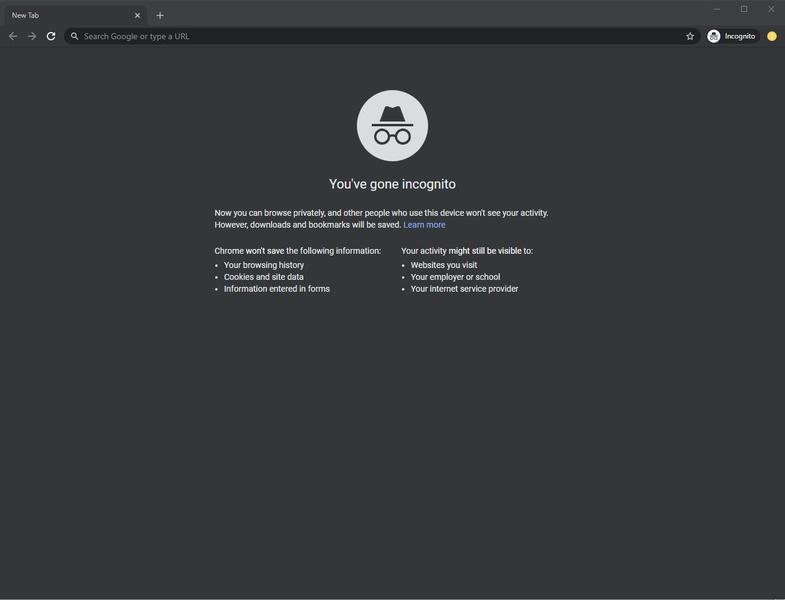
When you open an Incognito window, your browser creates a temporary browsing session that doesn’t permanently store:
- Browsing history
- Cookies
- Site data
- Search history on your device
- Form information
Once you close every Incognito tab, this temporary information is removed from your device.
However, this does not mean your browsing becomes invisible to everyone else.
How Does Incognito Mode Work?
Think of Incognito Mode like writing on a whiteboard instead of paper.
You can write whatever you want during the session.
When you’re done, the whiteboard is erased.
But if someone was watching while you were writing, they still saw everything.
The same applies online.
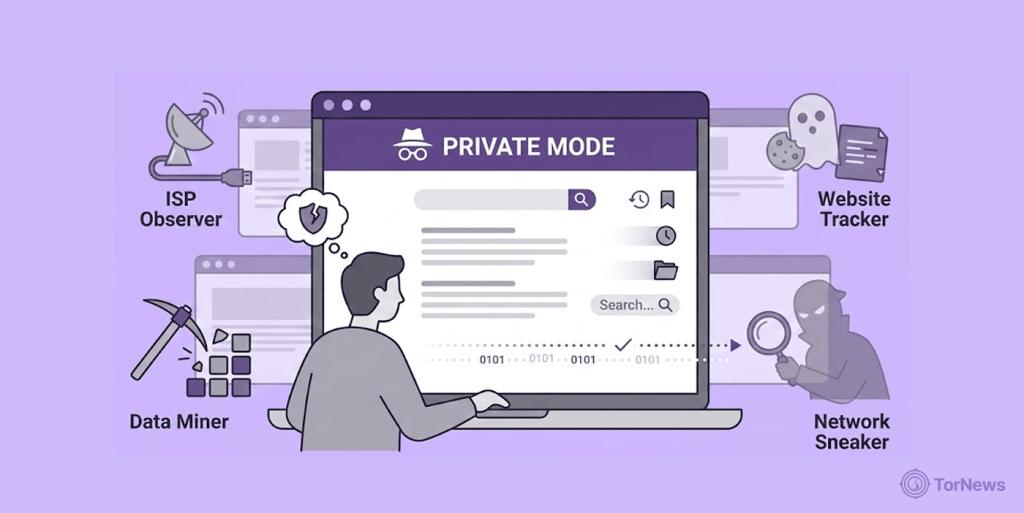
Your browser forgets your activity after the session, but websites, internet providers, employers, and schools may still know what you visited.
What Incognito Mode Actually Hides
1. Browsing History
After closing Incognito Mode, visited websites won’t appear in your browser history.
Perfect if you’re sharing your computer with family members.
2. Cookies
Websites use cookies to remember:
- Login sessions
- Preferences
- Shopping carts
- Personalized settings
Incognito deletes these cookies after the session ends.
3. Form Data
The browser won’t save:
- Names
- Addresses
- Phone numbers
- Search entries
4. Login Information
If you log into a website during Incognito Mode, you’ll usually need to log in again next time because the session isn’t saved.
5. Temporary Cache
Images and cached files are removed after closing the private session.
What Incognito Mode Does NOT Hide


This is where many users misunderstand private browsing.
1. Your Internet Provider (ISP)
Your ISP can still see:
- Websites you visit
- Connection times
- Data usage
Incognito Mode does not encrypt your traffic.
2. Websites You Visit
Websites still know:
- Your IP address
- Browser type
- Operating system
- Device information
- Approximate location
If you log into your account, they also know exactly who you are.
3. Google (If You’re Logged In)
Searching while logged into Google means your searches may still be associated with your account, regardless of Incognito Mode.
4. Employers and Schools
If you’re connected to:
- Office Wi-Fi
- School Wi-Fi
- University networks
Network administrators may still monitor internet activity according to their policies.
5. Government Agencies
Incognito Mode offers no special protection against lawful monitoring or investigations.
Biggest Myths About Incognito Mode
Myth 1: I’m Completely Anonymous
❌ False
Your IP address remains visible.
Myth 2: Google Can’t Track Me
❌ False
If you’re signed into Google services, activity can still be linked to your account.
Myth 3: My Employer Can’t See My Browsing
❌ False
Companies often monitor network traffic on corporate networks.
Myth 4: Incognito Stops Viruses
❌ False
Malicious websites can still attempt to infect your device if you download unsafe files or ignore browser warnings.
Myth 5: Downloads Disappear
❌ False
Downloaded files remain on your device unless you delete them manually.
Who Can Still See Your Activity?
Even when browsing privately, the following parties may still have visibility into your online activity:
| Who | Can They See You? |
|---|---|
| Websites | ✅ Yes |
| ISP | ✅ Yes |
| Employer | ✅ Yes |
| School | ✅ Yes |
| Government (where legally authorized) | ✅ Possible |
| Browser History on Your Device | ❌ No (after closing Incognito) |
| Family Using Same Computer | ❌ Usually No |
Is Incognito Mode Safe?
Yes—but only for certain purposes.
It’s useful for:
- Using a shared computer
- Logging into multiple accounts
- Testing websites
- Avoiding saved cookies
- Keeping browsing history off your device
It is not designed for anonymity or complete online privacy.
Better Ways to Stay Private Online
1. Use a Trusted VPN
A Virtual Private Network encrypts your internet connection and hides your IP address from many websites and local networks.
2. Enable HTTPS
Always make sure websites use:
https://
instead of:
http://
HTTPS encrypts data between your browser and the website.
3. Use Privacy-Focused Browsers
Examples include browsers that emphasize tracker blocking and privacy features.
4. Install Tracker Blockers
Privacy extensions can reduce advertising and tracking by blocking many third-party trackers.
5. Use Strong Passwords
Protect accounts with:
- Strong passwords
- Password managers
- Two-factor authentication (2FA)
6. Keep Software Updated
Security updates help protect against newly discovered vulnerabilities.
When Should You Use Incognito Mode?
Incognito Mode is ideal when you want to:
- Shop for gifts on a shared computer
- Sign into a second account temporarily
- Avoid saving cookies after a browsing session
- Test websites without existing cookies
- Use public computers more safely
When Should You NOT Rely on It?
Avoid assuming Incognito Mode protects you if you need:
- Anonymous browsing
- Complete privacy from your ISP
- Protection from malware
- Security on unsafe websites
- Encryption of your internet connection
Final Verdict
Incognito Mode is a useful convenience feature—not an invisibility cloak.
It helps keep your browsing private from other users of the same device by removing local traces like history and cookies after your session ends. However, it does not hide your activity from websites, your internet provider, employers, schools, or other network operators.
For stronger online privacy, combine good browsing habits with secure connections, trusted privacy tools, and strong account security.
Frequently Asked Questions (FAQ)
Does Incognito Mode hide my IP address?
No. Your IP address remains visible to websites and network providers.
Can my Wi-Fi owner see what I browse in Incognito Mode?
Yes. Incognito Mode does not prevent network owners from seeing the websites you connect to.
Does Incognito Mode delete downloads?
No. Downloaded files stay on your device until you remove them.
Can websites recognize me in Incognito Mode?
Yes. They can still identify your browser, IP address, and any account you sign into.
Is Incognito Mode enough for privacy?
No. It improves local privacy on your device but is not a complete privacy or anonymity solution.