How to Remove Virus from Android Without Factory Reset (Complete Guide)

How to Remove Virus from Android Without Factory Reset (Complete Guide)

Unleash your mobile potential

Discover the updates

Android smartphones are powerful devices used for communication, entertainment, and productivity. However, because Android allows users to install apps from different sources, it can sometimes become vulnerable to malware or viruses.

Best Tools to Remove Virus from Android

Many users think that the only way to remove a virus from their phone is by performing a factory reset. While a factory reset can solve the problem, it also deletes all your data including photos, videos, contacts, and apps.

The good news is that in most cases you can remove a virus from your Android phone without performing a factory reset. By following a few simple steps, you can detect and remove malicious apps and restore your phone’s normal performance.

In this guide, we will explain how to safely remove viruses from your Android device without losing your data.

“If your phone becomes slow after installing apps, you may also want to read our guide on how to make your Android phone faster.

Learning how to remove virus from Android without factory reset is important for keeping your smartphone secure and running smoothly.

Signs That Your Android Phone Has a Virus
copilot 20260309 213458
  • Your phone suddenly becomes very slow
  • Too many pop-up ads appear
  • Apps install automatically without permission
  • Battery drains quickly
  • Unknown apps appear on your phone
  • Your phone heats up even when not in use
  • Internet data usage increases suddenly

Some of the steps you should follow to get rid of mobile virus
remove virus from android without factory reset

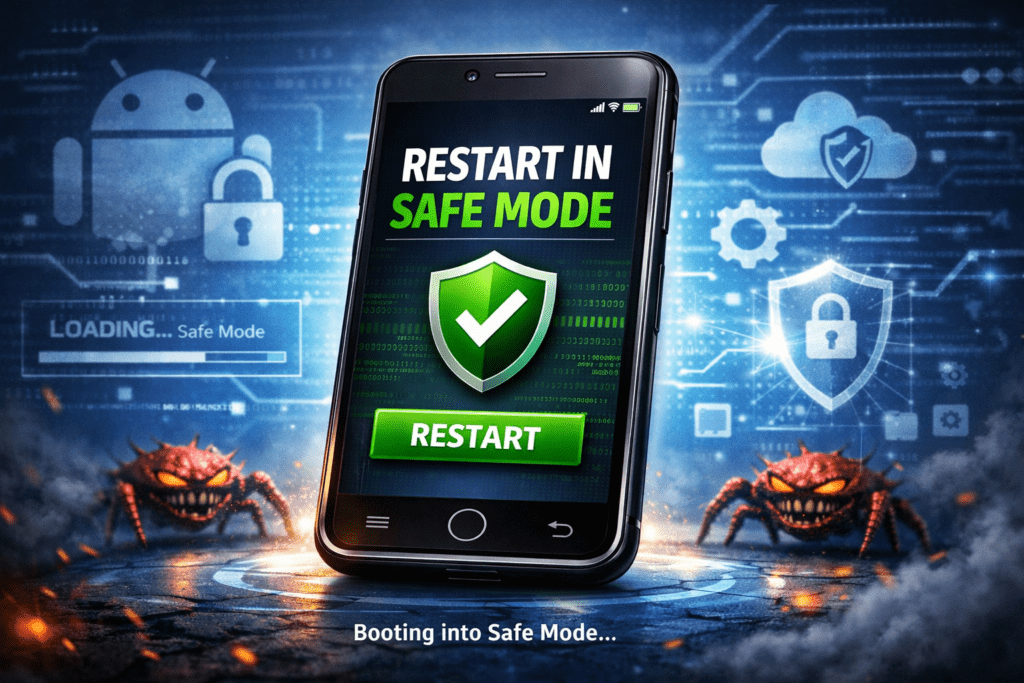
Step 1: Restart Your Phone in Safe Mode

Safe Mode allows your phone to run only system apps while disabling third-party applications. This makes it easier to identify malicious apps.

To enter Safe Mode:

  1. Press and hold the power button
  2. Tap and hold Power Off
  3. Select Safe Mode

When Safe Mode is active, you will see “Safe Mode” displayed at the bottom of the screen.

If the problem disappears in Safe Mode, it means a third-party app is causing the issue.

Step 2: Remove Suspicious Apps

Most Android viruses come from malicious apps installed from unknown sources.

To uninstall suspicious apps:

  1. Open Settings
  2. Tap Apps
  3. Look for apps you do not recognize
  4. Select the app
  5. Tap Uninstall

Pay special attention to apps that:

  • Have no icon
  • Were installed recently
  • Request unnecessary permissions

Removing these apps often solves the problem immediately.

copilot 20260309 220306
copilot 20260309 220435

Step 3: Check App Permissions

Some apps misuse permissions to access your data, camera, or microphone.

To review permissions:

  1. Open Settings
  2. Tap Privacy
  3. Select Permission Manager

Here you can see which apps have access to:

  • Camera
  • Location
  • Microphone
  • Contacts

Remove permissions from apps that do not require them.

Step 4: Clear Browser Data

If you are experiencing pop-up ads or unwanted redirects, the issue may come from your browser rather than a virus.

To clear browser data in Google Chrome:

  1. Open the browser
  2. Tap the three-dot menu
  3. Select Settings
  4. Tap Privacy and Security
  5. Choose Clear browsing data

This removes harmful cookies, cached files, and malicious scripts.

If your phone becomes slow after malware infection, read our guide on How to Speed Up Your Android Phone.

Step 5: Disable “Install Unknown Apps”

Many malware infections occur when users install apps from unofficial websites.

To disable this option:

  1. Go to Settings
  2. Tap Security
  3. Find Install Unknown Apps
  4. Turn it off

This ensures that apps can only be installed from trusted sources like the Google Play Store.

Step 6: Use Google Play Protect

Android devices include a built-in security tool called Google Play Protect.

This tool automatically scans apps and removes harmful software.

To run a manual scan:

  1. Open Google Play Store
  2. Tap your profile icon
  3. Select Play Protect
  4. Tap Scan

If malicious apps are detected, Play Protect will recommend removing them.

Step 7: Update Your Android System

Security updates fix vulnerabilities that hackers can exploit.

To update your phone:

  1. Open Settings
  2. Tap System
  3. Select Software Update
  4. Install the latest update

Keeping your phone updated ensures that the latest security patches are installed.

Step 8: Install a Trusted Antivirus App

If you want extra protection, you can install a reputable antivirus app. Security apps help detect malware, phishing attempts, and suspicious activities.

Some well-known Android security apps include:

  • Avast Mobile Security
  • Bitdefender Mobile Security
  • Kaspersky Mobile Antivirus

These apps provide real-time protection and malware scanning.

Prevention is always better than fixing a problem later. Follow these tips to keep your Android phone safe:

copilot 20260309 221730

Following these practices greatly reduces the risk of malware infections.

“Android automatically scans apps using Google Play Protect to detect harmful software.”

Final Thoughts

Android viruses can be frustrating, but they do not always require a factory reset to fix. By using Safe Mode, removing suspicious apps, clearing browser data, and running security scans, you can eliminate most malware infections without losing your personal data.

Android also includes built-in security features like Google Play Protect that help detect and remove harmful apps automatically.

By staying cautious when installing apps and regularly updating your phone, you can keep your Android device secure and running smoothly.

With the right precautions, you can enjoy all the benefits of your smartphone without worrying about viruses or security threats.

By following these steps, you can successfully remove virus from Android devices without performing a factory reset and keep your phone safe from future threats.

Frequently Asked Questions (FAQ)

1. Can Android phones really get viruses?
Yes, Android phones can get malware or harmful apps if you download apps from unknown sources instead of the trusted Google Play Store.

2. How do I know if my Android phone has a virus?
Common signs include slow performance, excessive ads, unknown apps appearing, and sudden battery drain.

3. Can I remove a virus without factory reset?
Yes. You can remove most malware by uninstalling suspicious apps, clearing browser data, and scanning your device with Google Play Protect.

4. Is antivirus necessary for Android phones?
Android devices already include basic protection, but using trusted security apps like Avast Mobile Security can provide extra safety.

Leave a Comment

Your email address will not be published. Required fields are marked *

Scroll to Top